
Visual Desktop Control in omnideck: An Experiment in Progress
· Larry Foulkrod
Inside an unshipped experiment: accessibility, visual grounding with DeepSeek, and repeated tests of accuracy and speed on a Linux desktop.
We’ve been experimenting with giving omnideck agents control of a Linux desktop: opening applications, interacting with native controls, and using vision to locate targets when accessibility information falls short.
This work is still in development. Here is what we tried, what worked, and what we learned from testing it.
Our central question was practical: could a general-purpose vision model provide useful desktop grounding with a small set of generic tools? We compared models, refined the prompts, tested real mouse interactions, and checked complete workflows against independently recorded application state.
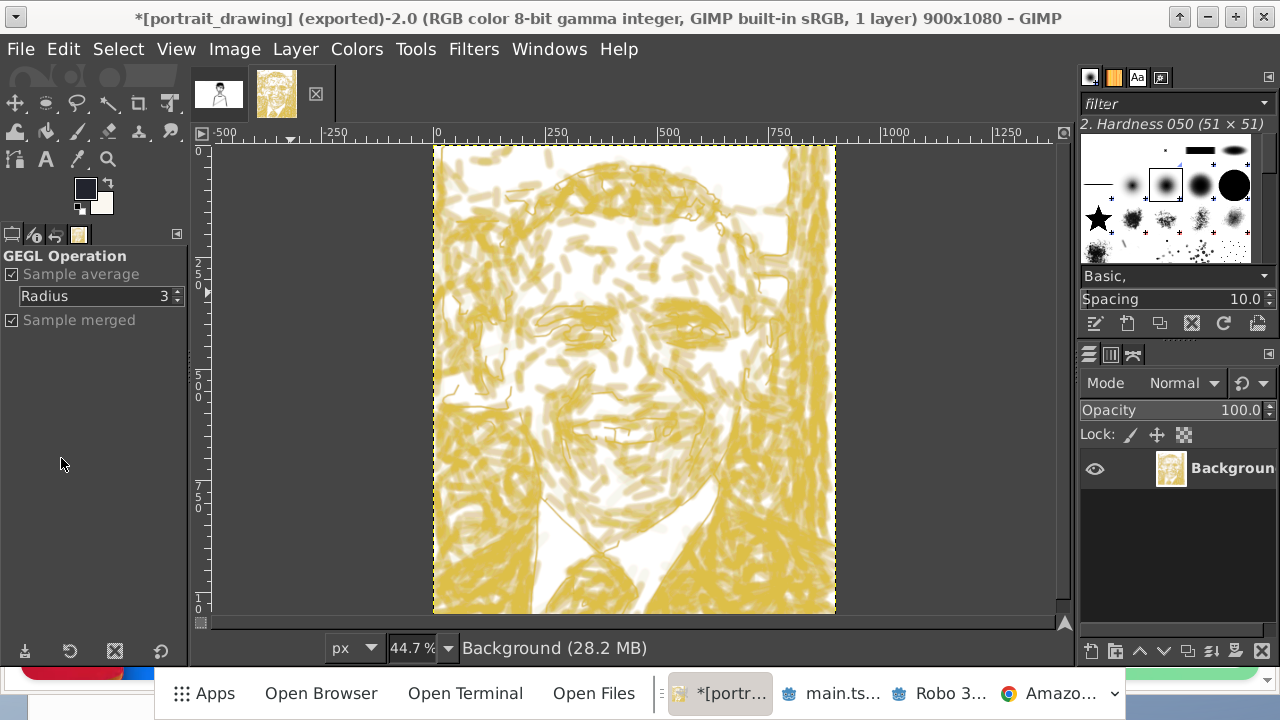
The Linux desktop used in the experiments, running GIMP.
Start with accessibility, use vision where it helps
A desktop contains more than pixels. Applications can expose control names, roles, values, actions, and bounds through Linux’s AT-SPI accessibility interfaces. When that information is available, an agent can identify and interact with a control directly.
That is the first path in this experiment. A native control with a useful name and action is often easier to work with than an image of the same control. For browser tasks, existing browser tools remain useful too. Desktop interaction fills the gaps: native dialogs, other applications, canvas content, and controls that those interfaces cannot adequately expose.
Vision is one part of that system. We did not add a specialized tool for every application. The visual primitives are generic: click a target, move the pointer to a target, or drag from one target to another.
For example, the main agent can ask:
visual_click("Delete on the report.pdf row")
The main agent decides what needs to happen. A separate vision call locates that one target on a fresh screenshot. The tool then performs the input and returns an updated observation so the agent can check the result.
How we used DeepSeek for grounding
“Grounding” means connecting a description such as “the Folder text field” to a location on the screen.
We used DeepSeek’s existing vision capability with a tightly constrained targeting prompt, without custom training or a UI-TARS dependency.
The dedicated vision call receives one screenshot at its native resolution and one target description. It does not need the main agent’s full conversation. Here is the actual prompt appended to the target description:
Point to the visual center of that control. Use native image coordinates normalized to 0–1000 for x and y. Return only {"x": ..., "y": ...}. Do not convert into pixels or do resolution arithmetic. If absent return {"found":false}.
We tested DeepSeek V4.1 Flash through an Ollama service using the cloud model tag deepseek-v4.1-flash:cloud. The requests disabled thinking, used temperature zero, and allowed up to 4,096 output tokens.
The model returns a point in a normalized coordinate space. The implementation performs the conversion:
pixel_x = round(x * (width - 1) / 1000)
pixel_y = round(y * (height - 1) / 1000)
For a 1280×720 screenshot, a response of {"x":500,"y":250} becomes approximately (640, 180).
Before generating input, the tool validates the response. It requires a coordinate object with only x and y, rejects nonnumeric, nonfinite, and out-of-range coordinates, and handles an absent-target response without clicking. A single JSON code fence is tolerated; explanatory prose around the answer is not.
For a drag, source and destination are grounded in parallel using the same screenshot. Both must be accepted before the gesture begins.
After the input, the agent checks the application’s state to confirm that the intended control responded.
Better target descriptions mattered
Testing against real models showed us why the main agent needed guidance on describing a target. In a live dock test, we asked DeepSeek to “Hover over the File Manager application icon in the bottom dock.” It missed the icon in all three attempts.
We then described the same target as “the blue filing cabinet icon between the black Terminal icon and the blue globe Web Browser icon in the bottom dock.” DeepSeek located it correctly in all three attempts. Across three targets described by appearance and neighboring controls, it scored 9/9. Kimi scored 3/3 on the generic File Manager description and 6/9 on the descriptions using appearance and neighbors.
“File Manager” names an application’s purpose, but an unlabeled dock only shows its icon. Describing its color, shape, and neighbors gives the model visible clues to match. The same principle helps distinguish identical Delete buttons on different file rows or a small swatch among similar colors. These results led us to put guidance on describing a precise target in both the Desktop skill and the tool descriptions.
This is the relevant passage from the experimental Desktop skill:
When accessibility cannot identify or activate a target, use visual_click(target) with a precise description of ONE currently visible target. For small adjacent icons or swatches, use appearance and named neighbors rather than only an ordinal position. Verify the resulting application state before further actions; if it is wrong, observe again and refine the target description.
The visual_click tool docstring reinforces that instruction:
For small adjacent controls, describe appearance and named neighbors rather than only ordinal position.
Its argument description gives a concrete example:
target: One precise visible target, e.g. "Delete on the report.pdf row".
An illustrative description would be:
visual_click(
    "The blue folder icon immediately to the right of "
    "the terminal icon in the bottom panel"
)
We also made the desktop itself easier to read. We simplified the bottom application panel and gave its launcher buttons visible text: Apps, Open Browser, Open Terminal, and Open Files. The agent could now ask for the button labeled “Open Files” instead of identifying an unlabeled icon. DeepSeek located all four buttons correctly in each of three runs: 12/12.
The skill also directs the agent to verify native values, status, or saved artifacts where possible, and not to treat coordinates inferred from prose or scaled preview images as reliable input coordinates.
What we tested
We separated three questions: can the model locate the control, can the tool deliver the intended input, and can the agent finish a workflow?
1. Repeated screenshot targeting
The final production-tool replay used 60 unique positive fixtures per model:
- 24 development fixtures: six types of target at four screen resolutions.
- 24 held-out fixtures: the same categories with changed targets and four other resolutions.
- 12 native GTK fixtures: six target types across two layouts.
Each model ran the positive set three times, for 180 attempts. We also repeated six absent-target cases per run, producing 18 attempts where the expected action was no click.
| Target type | Example task |
|---|---|
| Large buttons | Click the button labeled Save |
| Dense toolbar | Choose Save As rather than Save |
| Small icons | Click the trash-can icon |
| Repeated labels | Click Delete on the archive.zip row |
| Dialog fields | Click inside the Filename field |
| Table cells | Click cell C4 |
The development images ranged from 800×600 to 1920×1080. The held-out images ranged from 960×640 to 1920×1200 and changed targets to controls such as Export, Replace, the search icon, and cell D3. The native GTK images were 1280×800 and also included checkboxes.
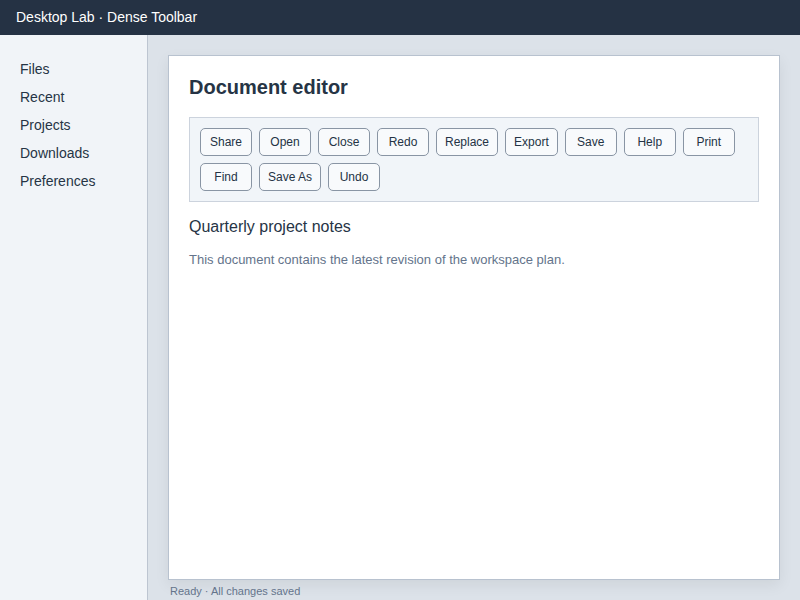
Actual development fixture. Task: “Click Save As in the editor toolbar. Choose Save As rather than Save.”
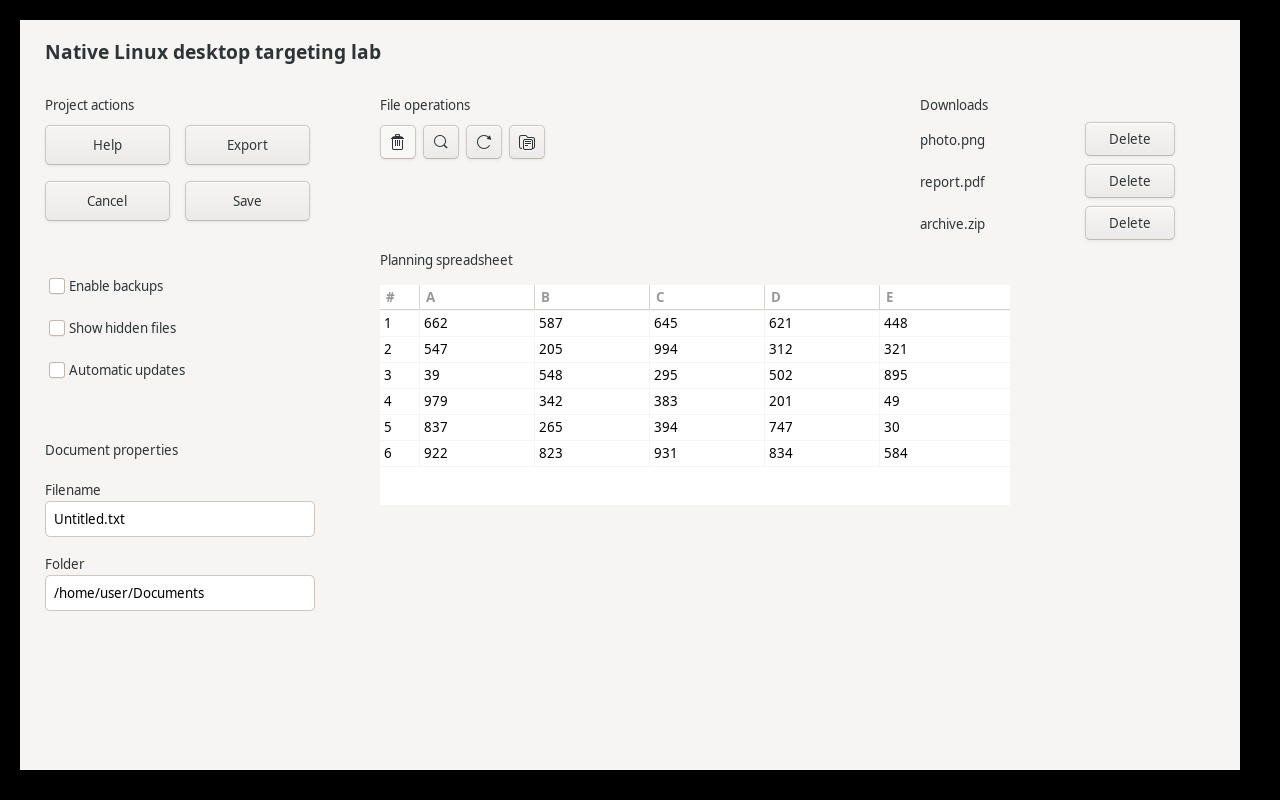
Actual native GTK fixture. Task: “Click Delete on the archive.zip row. Other rows also have Delete buttons.” The model had to associate the button with the correct row.
The replay ran through the experimental production visual_click and provider path, substituting fixed screenshots and recording the requested pointer location instead of injecting input. A hit required that point to fall inside independently recorded target bounds.
| Model through Ollama | Correct accepted targets | Median provider request | Absent targets handled correctly |
|---|---|---|---|
| DeepSeek V4.1 Flash | 180/180 | 0.378 s | 18/18 |
| Kimi K3 | 177/180 | 0.891 s | 18/18 |
DeepSeek scored 60/60 in each repetition. Kimi scored 59/60 each time, missing the same held-out spreadsheet target.
DeepSeek gave us the strongest combination of targeting accuracy and speed in these tests, so we selected it for further development.
2. Real click, hover, and drag events
Next, a native GTK application recorded the actual mouse events produced by the tools. We checked click, hover, drag, and absent-target behavior three times for each of DeepSeek and Kimi.
Both models passed 12/12 checks. The application recorded the expected press and release positions, hover state, and motion while dragging. We also checked that the mouse button was released after each operation.
| Model | Median complete click | Median hover | Median drag |
|---|---|---|---|
| DeepSeek V4.1 Flash | 0.850 s | 0.813 s | 1.510 s |
| Kimi K3 | 1.412 s | 1.337 s | 2.432 s |
These times cover the complete action: screenshot capture, model calls, mouse input, and the updated observation. The drag gesture itself lasts 650 ms.
3. Complete desktop workflows
Finally, the general agent connected to DeepSeek worked through synthetic tasks in real installed applications. We scored application state and artifacts independently of the agent’s claim that it was done.
| Workflow | Independent check | Final outcomes | Median workflow time |
|---|---|---|---|
| Expense submission | Fields, attachment, and receipt contents | 3/3 | 33.57 s |
| Canvas interaction | Target clicks and parcel delivery geometry | 3/3 | 51.24 s |
| Document editing and PDF output | Text extracted from the saved PDF | 3/3 | 69.99 s |
| Download, edit, and upload | File contents, filename, and submitted options | 3/3 | 92.76 s |
We refined the tools between workflow groups as the tests exposed problems.
The canvas runs exercised 12 visual targets across clicks and drag endpoints, all correctly located. They also contained three redundant clicks after already-correct actions, showing that confirmation still needed improvement.
The document and download/edit/upload runs needed no vision calls. Native accessibility, bounds, and keyboard actions were enough.
All 12 workflows reached the correct final application state, and 8/12 runs also followed all tool-use instructions. In two runs, the agent tried browser tools with native desktop references; those calls were rejected before input, and the agent recovered. In two others, it used shell commands to read observations saved to temporary files, despite instructions permitting shell use only to launch applications. Those failures pointed to clearer tool-selection guidance and smaller observations as the next improvements.
4. Making the same workflow faster
We used the expense task for a before-and-after comparison of the tools. Starting from an empty form in the desktop browser, the agent had to fill in the report name, department, amount, and notes; set a checkbox; attach a receipt through the native file chooser; submit the expense; and open the receipt in a text editor to inspect its contents.
The initial runs exposed two sources of extra work. After each action, the tools repeated large amounts of unchanged accessibility information. Some form fields also rejected native text editing, leaving the agent to recover with separate keyboard actions.
We changed the tools to return the controls that changed, removed controls, and current focus after an action, while keeping a full accessibility snapshot available on request. We also taught the existing field-editing tool to use keyboard input when a field explicitly reported that native editing was unsupported. It checks the field and focus before typing, then reads the value back to verify the result.
We ran the same prompt three times before these changes and three times after, resetting the form each time. All six runs produced the correct expense and receipt result. Median completion time fell from 54.11 to 33.57 seconds, and median tool-output volume fell from 165,837 to 93,915 characters. The improvements came through the existing generic desktop tools, with no expense-specific automation.
Inspect the benchmark
We’ve published the Desktop Grounding Bench repository with the frozen screenshots, target bounds, exact prompt and validator, historical results, and original scripts for inspection.
It also includes a portable screenshot runner for trying models through Ollama, an offline replay check against the saved results, and an optional isolated GTK test for real mouse input. New measurements are saved separately from the original results.
The useful result of this experiment is a division of responsibility: accessibility exposes structure, the main agent chooses the action, a vision model locates a target when needed, deterministic code validates and delivers input, and application state tells us whether it worked. That is the approach we are continuing to evaluate before shipping.